1 Computer is Friend
The theme of this lesson is understanding the difference between hardware and software, and where things are stored on your computer. In part two of the coursework, you will learn good practices for managing and storing files for this course.
Before you learn how to program, it can be helpful to learn a few simple things about how computers work. Modern computers hide a lot of the details about where and how files are stored, but later in the course when you start writing programs these details will suddenly become very important.
1.1 Hardware
The components that make up the physical computer are the hardware. This 3-minute video is focused on desktops, but the same components are commonly found in laptops, cell phones, and even smart watches.
Examine the hardware on your computer using one of the following methods:
Windows: Ctrl+Shift+Escape > Task Manager > More Options > Performance tab
Mac: Apple menu > System Settings > General (sidebar) > About > System Report
Find out:
What processor do you have? This most likely will start with ARM, Intel, AMD, or Apple M*
How much RAM do you have? (most likely between 8 and 64 GB)
How much hard drive space do you have?
1.1.1 Operating Systems
Operating systems (OS), such as Windows and MacOS, are sophisticated programs that allow CPUs to keep track of multiple programs and tasks and execute them at the same time. This 2-minute video describes different operating systems.
Broadly, you should know (1) what operating system your computer uses (Windows / Mac / Linux), and (2) what version of the system your computer uses (e.g. Windows 11, Mac OSX Tahoe, Debian 12, RedHat 7).
Locate your operating system and version information. When was your system last updated?
If your system hasn’t been updated in a while, consider updating it now. System updates may break software you’ll install to work with R in the next few weeks.
1.1.2 File Systems
File systems are places you save files (shocking!). These systems are modeled after physical file cabinets, where documents are kept in a hierarchical sequence of folders. This collection of folders is what is stored on your hard drive.
There has been a generational shift in how computers are used. Older users (like me!) were taught to organize files deliberately, while many newer users rely almost entirely on search, treating their computers less like filing cabinets and more like laundry hampers.
Regardless of how you tend to organize your personal files, it is helpful to understand the basics of what is meant by a computer file system–a way to organize data stored on a hard drive.
1.1.2.1 Local & Network File Systems
There are two primary types of file systems:
local file storage, where files are physically stored on your computer’s disk.
network file storage, where files are stored “in the cloud” and you may have a copy on your local machine.
We have noticed that more and more students have their files stored on cloud-based networks (e.g., Microsoft OneDrive, iCloud) rather than locally. In fact, there seems to be a growing trend for files to be exclusively stored on a cloud-based service rather than locally, and, unfortunately, it can be difficult to override these defaults.
When programming, it is essential to know where your files are being stored. In Week 4 when we start reading in data, you will not be able to interactively search for where the data are stored. Instead, you will need to know the exact location of the data on your computer. For this class, we strongly prefer for files to be stored locally because working “in the cloud” can cause strange errors that are difficult to diagnose.
1.1.3 File Paths
It’s not enough to know about a computer’s file system, we also need to know how computers remember the location of what is stored where. Specifically, we need to understand file paths.
When you write a program, you may have to reference external files - data stored in a .csv file, for instance, or a picture. To reference a file, you have to tell the computer where to look. Meaning, you need to give the computer a file path. There are two types of file paths:
global file path: Starts at the root of the file system location (e.g.,
C:\or/homeor/Users) and describes how to navigate to the file from the root.local file path: Starts at the program’s current location (e.g.,
Documents,Desktop) and navigates to the file from that location.
The best practice for file storage is to create a folder that contains everything you need to run your entire project. This folder can (and should!) have sub-folders. This might look something like this:
- Documents
    - stat-1810
        + Week 1
            * Lecture
            * Lab
        + Week 2
            * Lecture
            * Lab
        + Week 3
            * Lecture
            * Lab
        + Week 4
            * Lecture
            * Project
        + .Rproj
For now, it is enough to know how to find files using file paths, and how to refer to a file using a relative file path from your base folder. In this example, the “base folder” would be stat-1810. In Week 4 we will learn about RStudio projects (.Rproj), a tool for setting the base folder of a project without having to write any code!
1.1.3.1 Making Good File Names
You might have noticed a few things about how we chose to name the folders in the previous example. First, the main folder was named stat-1810 not Stat-1810 or Stat 1810. We made this choice for two reasons:
Some computers are case sensitive, so it is safer to use the same capitalization for all folders.
statis easier to type thanStatorSTAT.Using spaces in file names (e.g.,
stat 1810) can sometimes cause issues. So, we advocate for replacing spaces with a hyphen or an underscore.
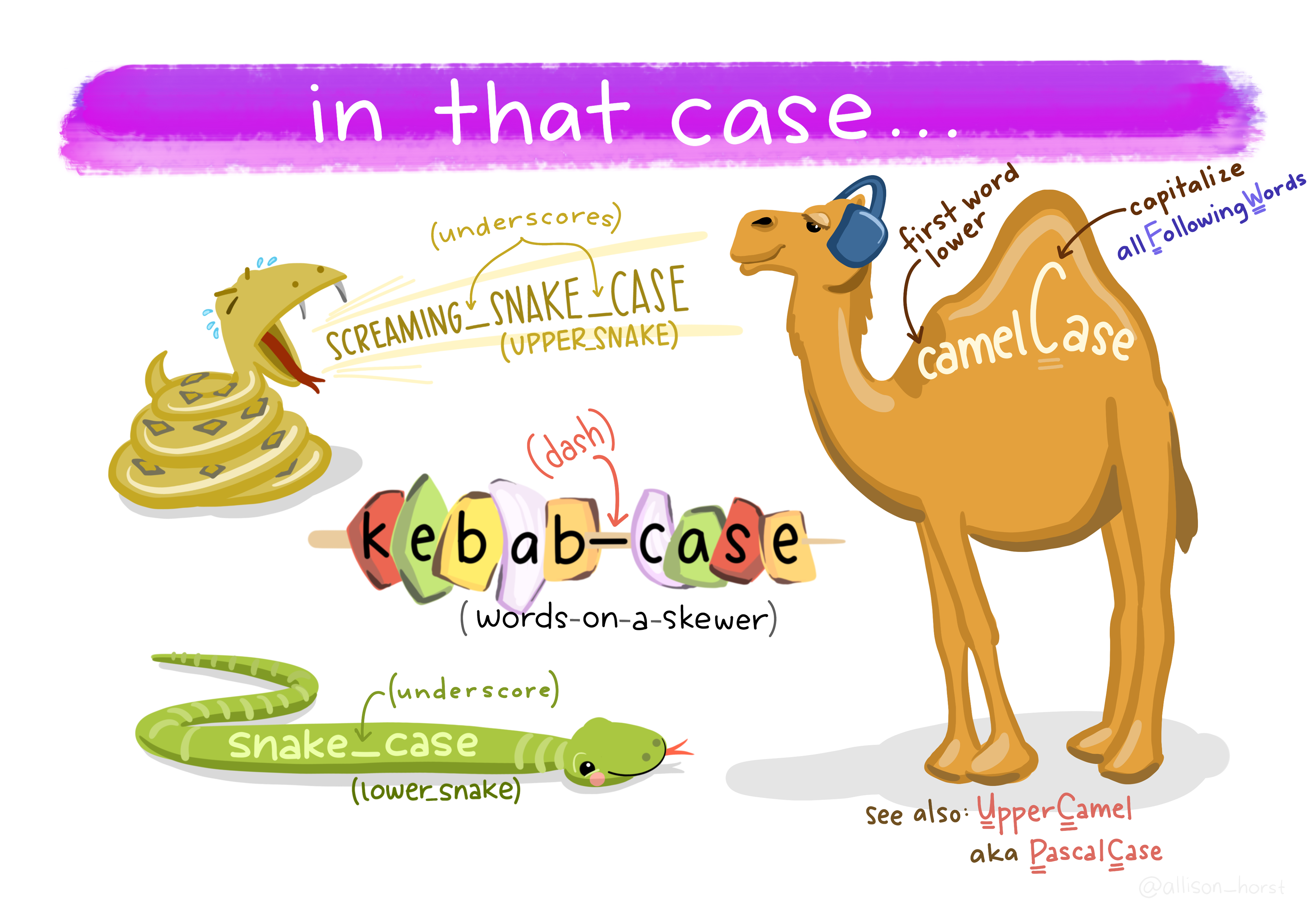
Different operating systems (and file system formats) have different rules for how file names are handled within the file system.
| Windows | Mac OSX | Linux | |
|---|---|---|---|
| Disallowed Characters | <, >, ", /, \, |, ?, * |
:, some programs will restrict use of / . Avoid names that start with . unless the file should be hidden. |
NULL character, / . Can’t name files . or .. . Avoid \, ", ', *, ;, ?, [, ], (, ), ~, !, $, <, >, #, @, &, |, spaces, tabs, and newlines. Avoid names that start with . unless the file should be hidden. |
| Case Sensitive | No. A.jpg is the same as a.JPG |
It’s complicated. Act as if it’s case sensitive to be safe. | Yes. A.jpg is different from a.jpg and A.JPG |
| Name Length | Entire file path should be <256 characters[^01-computer-basics-4]. | (For HFS+ systems) File names < 255 characters. File paths can be longer. | File names < 255 characters, File paths < 4096 characters (most file system options, including ext4) |
Now that we’ve learned about file paths and names, let’s create a folder for this course!
Create a stat-1810 folder in the Documents folder of your computer. Ensure your folder is stored locally on your computer, not on OneDrive or iCloud!
Take a screenshot of your class directory, showing:
- the location of your
stat-1810folder - a Week 1 sub-folder
1.2 Software
This course is all about you learning skills for working with data in R, so you will need to have local installations of both R and RStudio on your computer. Moreover, we will make use of Quarto documents, so you will need to have Quarto installed on your computer.
If for any reason you cannot download R or RStudio onto your laptop, please let me know as soon as possible so we can figure something out.
1.2.1 What do I need to install?
It’s a good idea to be skeptical when someone is telling you to install things. 🤨 Here’s a very broad overview of what each of these programs or services does and why I’m asking you to install or sign up for them.
| Program | Logo | Purpose |
|---|---|---|
| R |  |
A statistical programming language built around working with data |
| RStudio IDE |  |
An integrated desktop environment (IDE) created to make it easy to work with R, Python, and other data-science programming tools. |
| Quarto |  |
A document creation system that allows you to include code, results, and pictures generated from data within a document so that they automatically update when the document is recompiled. |
1.2.2 Installing R
As mentioned above, you will need to have local installations of both R (the software) and RStudio (the interface for working in R). Do not skip this step if you already have both R and RStudio installed on your computer, as you need to ensure you are using the most up to date version of R and RStudio.
Download and install R by going to https://cloud.r-project.org/. Here, you will find three options for installing R—click on the option for your computer’s operating system.
1.2.2.1 If you are a Windows user:
Click on “Download R for Windows”
Click on “base”
Click on the Download link.
When you open the execution file (
.exe) you will be prompted with a variety of questions about installing R. Feel free to use the default features / settings that come with R (continue to click “Ok” until the download starts).
Beware that if you had a previous version of R downloaded on your PC, that old version will not be deleted when you download the most recent version of R. We do not want to have two versions of R installed, as your computer can get confused what version of R to use. So, you need to remove the old version of R.
To do this you need to:
- Navigate to your computer’s settings
- Click on the “Apps” option on the left-hand panel
- Search for or scroll down to R
- Find the older version of R

- Click on the
...on the right side - Select “Uninstall”

1.2.2.2 If you are macOS user:
Click on “Download R for (Mac) OS X”
Under “Latest release:” click on R-X.X.X.pkg, where R-X.X.X is the version number. For example, the latest version of R as of January 1, 2025 was R-4.5.2 (Not Part in a Rumble).
When installing, use the default features / settings that come with R (click Ok until the download starts).
First, identify which version of OSx you are running. How-to
Next, find out which version of R your computer can run. Link
If this version is 3.6 or later, download the latest version that your computer can handle.
If this version is 3.4 or earlier, you’re going to run in to some trouble. I recommend updating your version of OSx, if you are willing. If you can’t, then you can use Posit Cloud to run R and RStudio on a free server. However, I recommend strongly against this option; your files will not be saved indefinitely, you will have limited hours to complete your work, your computing power will be limited, and you will need an internet connection at all times to do your work.
1.2.2.3 If you are a Linux user:
Click on “Download R for Linux” and choose your distribution for more information on installing R for your setup.
1.2.3 Step 2: Install RStudio
RStudio is an Integrated Development Environment (IDE) for R. What does that mean? Well, if you think of R as a language, which it is, you can think of RStudio as a program that helps you write and work in the language. Back in the dark ages, people wrote programs in text editors and then used the command line to compile those programs and run them. RStudio makes programming in R much easier and this course requires you to use it!
Downloading the most recent version of RStudio works the same way regardless of whether you’ve never downloaded RStudio before or if you just need to update your version of RStudio.
When you navigate to the RStudio download page (https://rstudio.com/products/rstudio/download/), the website should automatically detect your computer’s operating system. So, you should be able to simply click the blue “Download RStudio Desktop for [insert operating system here]” button.
Clicking the button will begin installing RStudio. Once the download has completed, you will need to open the application file (on a Mac this is a .dmg file, on Windows this is an exe file).
1.3 Let’s start working in R! 🥳
